Set up
Set your web address
Your web address has two parts, the organization and the parade. Learn where to set each one, and why changing them later can break links you've already shared.
Your public web address is built from two parts: your organization and the parade. If your organization is harvest-festival-parade and your parade is harvest-festival-parade-2026, the public parade page lives at:
paradeworks.co/p/harvest-festival-parade/harvest-festival-parade-2026
The organization part is shared by every parade you run. The parade part is unique to each one. You set both during setup, and most organizers never need to touch either again. They show up on your public website, your application form, and anything you print with a link or QR code on it.
Set the organization address
The organization part comes first in every link, so it's shared across your whole account.
- Go to your hub, the page that lists your parades.
- Hover your organization's name and click the edit (pencil) beside it.
- In Edit Organization, change the URL Slug, then choose Save Changes.
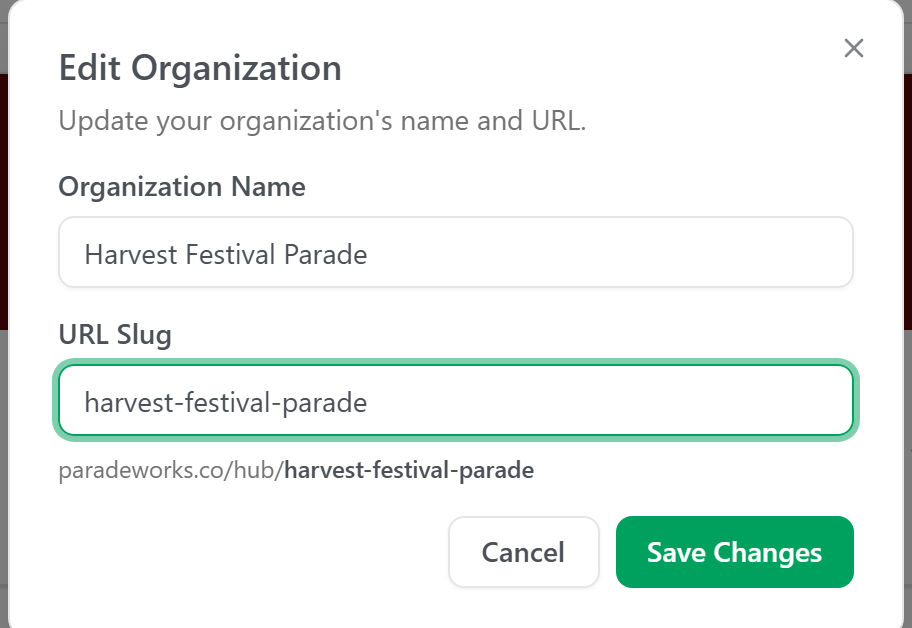
The dialog previews your organization hub link (paradeworks.co/hub/your-slug). Keep in mind that this same slug is also the first part of every public parade address (paradeworks.co/p/your-slug/...), so changing it affects every parade you've ever run, not just one.
Set the parade address
The parade part is unique to each parade and only affects that one.
- Open the parade and go to Settings.
- On the General tab, look in the Branding section for Web Address.
- Click the pencil beside it. The section flips into edit mode, showing a Custom Web Address field (and the parade's hashtag, which you can leave alone).
- Type the new address and save.

The address updates as soon as you save. If you type something invalid (spaces, capitals, or symbols), the save is rejected with an error; stick to lowercase letters, numbers, and hyphens.
What makes a good address
Keep each part short, lowercase, and easy to say out loud. Use hyphens instead of spaces. For the parade part, include the year if you run the same parade annually, so next year's parade can have its own address without a clash.
Good: harvest-festival-parade, harvest-festival-parade-2026, main-street-fall-fest
Avoid: Harvest Parade!, HolidayParade2026!, our_big_event
Read this before you change either later
Changing an address after you've started sharing it is the one thing to be careful about. The old link stops working the moment you save. Anything already pointing at it breaks, including:
- Links you emailed or texted to participants and sponsors
- Posts on social media
- Printed flyers, posters, and programs
- QR codes on signs or handouts
The organization part is the riskier one: changing it breaks the links for every parade at once, not just the one you're working on. If you've already shared anything, treat both addresses as fixed and rename only if almost no one has seen them yet.
If you truly need to change an address after launch, plan to re-share the new link everywhere the old one appeared, and reprint anything physical.