Execute
Parade day, checking in units
Turn on the check-in dashboard, share the PIN with your lineup staff, and track which units have arrived on parade morning.
On parade morning, the check-in dashboard tells you, in real time, which units have shown up and which haven't. Your lineup staff open it on their phones, and each check-in updates everyone's view. It's built to be used by several people at once, out in the field.
Turn it on and get the PIN
Check-in lives as a built-in page. Go to the Pages tab and find Unit Check-In. Flip it from Draft to Published to switch it on. The first time you do, a 6-digit PIN is generated automatically.
Once it's published, the PIN shows right there with a copy button. Share it with your lineup staff before parade day; anyone with the link and the PIN can use the dashboard, so treat the PIN like a door code. If you ever need to change it, New PIN rotates it (which immediately invalidates the old one).
Staff reach the dashboard at your parade's
/checkinaddress (paradeworks.co/p/your-org/your-parade/checkin). They enter the PIN once, and it's remembered on that device for about 12 hours, long enough to cover the day without re-entering it every time.
Print packets for your lineup crew
Don't make your crew type a URL and a PIN off a text message at 6 AM. The role guides that come with your parade already handle this: in the Documents tab, under Role Documents, each lineup role (Lineup Lead, Lineup Marshal, and the rest) generates one printed packet per person that includes:
- a QR code that opens the check-in dashboard, with the PIN printed right under it, so getting a phone onto the dashboard is scan, type six digits, done
- their assigned units as a checkable list, which doubles as the paper backup if a phone dies or the network gives out
- the lane map, their supplies checklist, and who to contact
Use Download → All Sheets as ZIP to get one PDF per person and hand them out at staff check-in. Two cautions: the packets show the PIN, so treat leftover copies like door keys, and if you rotate the PIN with New PIN, every printed packet is stale — reprint before you hand out more. See Generate parade-day paperwork for how the document sheets work.
Make sure staff and units show up on it
Two things feed the dashboard:
- Units, in your finalized lineup order. Each unit appears with its lineup number.
- Assigned staff, but only from positions whose role type is Lineup Staff and that have units assigned to them. If your check-in crew doesn't appear in the Staff Progress tiles, check that their staffing positions are Lineup Staff roles with units assigned.
Dry-run it before parade morning
Publish check-in a few days early and test it like a marshal would, so parade morning starts with a tool everyone has already used:
- On your own phone, scan the QR from a printed packet (or type the
/checkinaddress), enter the PIN, and confirm the dashboard loads with your units in lineup order. - Tap Check In on a unit, watch it go green, then undo it. That's the whole workflow your crew needs to trust.
- Confirm your crew appears in the Staff Progress tiles; if someone's missing, fix their staffing position now, not at 6 AM.
- At your pre-parade staff meeting, have everyone scan in and enter the PIN once. Day-of then requires zero setup (the PIN holds for about 12 hours, so on parade day they'll enter it just once more at most).
If you finalize or reorder the lineup after the dry run, glance at the dashboard again — it follows the lineup, so the numbers your crew saw in the test may have changed.
Using it on the day
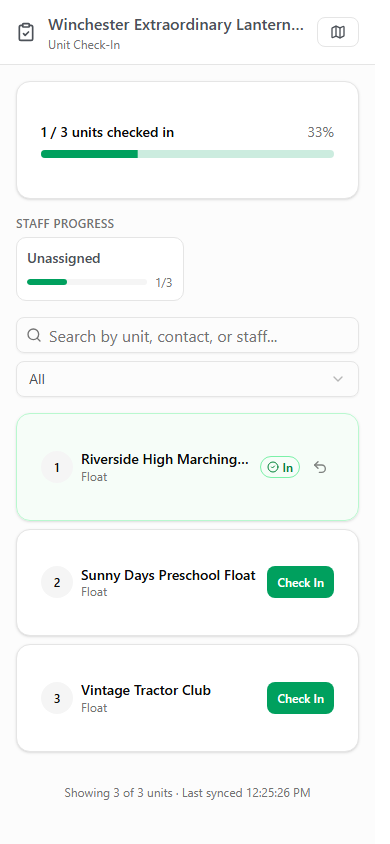
After entering the PIN, staff see:
- A running total at the top: how many units are checked in out of the total, with a percentage.
- Staff Progress tiles, one per assigned staffer (plus an Unassigned tile), showing each person's checked-in count. Tapping a tile filters the list to that person's units.
- The unit list in lineup order. Tap a unit to expand its details: size and composition, primary contact (with tap-to-call and email), notes, and assigned staff.
To check a unit in, tap Check In. It gets a green In badge, and an undo button if it was a mistake. For a unit that never arrives, expand it and use No-Show; if they turn up later, They showed up puts them back.
There's a search box (by unit, contact, or staff) and a status filter (All, Checked In, Not Checked In) to find units fast in a long list.
Everyone works at once, one shared picture
There's no limit on how many staff use the dashboard at the same time, and you don't have to divide the work up front. Each marshal works their own stretch of the lineup on their own phone, and every check-in flows into one shared view: when someone marks unit 214 in, it shows as In for everyone within seconds (each device refreshes itself every 20 seconds). You watching the totals at the front see the whole parade fill in live, without anyone calling anything in.
It also rides out brief connection drops: it retries failed taps and shows a banner if the device goes offline, syncing back up when the connection returns. It's designed for spotty parking-lot wifi, but a real data connection is still best.