Prepare
Watch your parade before it happens
Play the simulation to see your whole parade move, check the total running time, catch spacing problems, and fix them while they're still free to fix.
The Map tab doesn't just draw your route; it can run your entire parade. Press play and every unit steps off in lineup order, marches the route at a realistic pace, pauses to perform, and disperses, with the clock running. It's the cheapest dress rehearsal you'll ever get: timing problems that would cost you on parade morning show up here as something you can fix with a drag and a re-run.
Play it
On the Map tab, the playback panel sits on top of the map:
- Play / Pause starts and stops the parade. (Spacebar works too.)
- Reset (the circular arrow) puts everything back at the start.
- The clock shows where you are and the total, like
12:40 / 59:36. That second number is the headline: it's your parade's estimated total running time, from first stepoff until the last unit clears. - The timeline slider scrubs to any moment, forward or backward, instantly. Drag it to jump straight to "what does minute 40 look like?"
- The speed menu runs from 1x (real time) up to 250x. Reviewing a full hour-long parade at 60x takes about a minute.
The arrow keys nudge time a second at a time (hold Shift for ten), which is handy for watching one tight spot frame by frame.
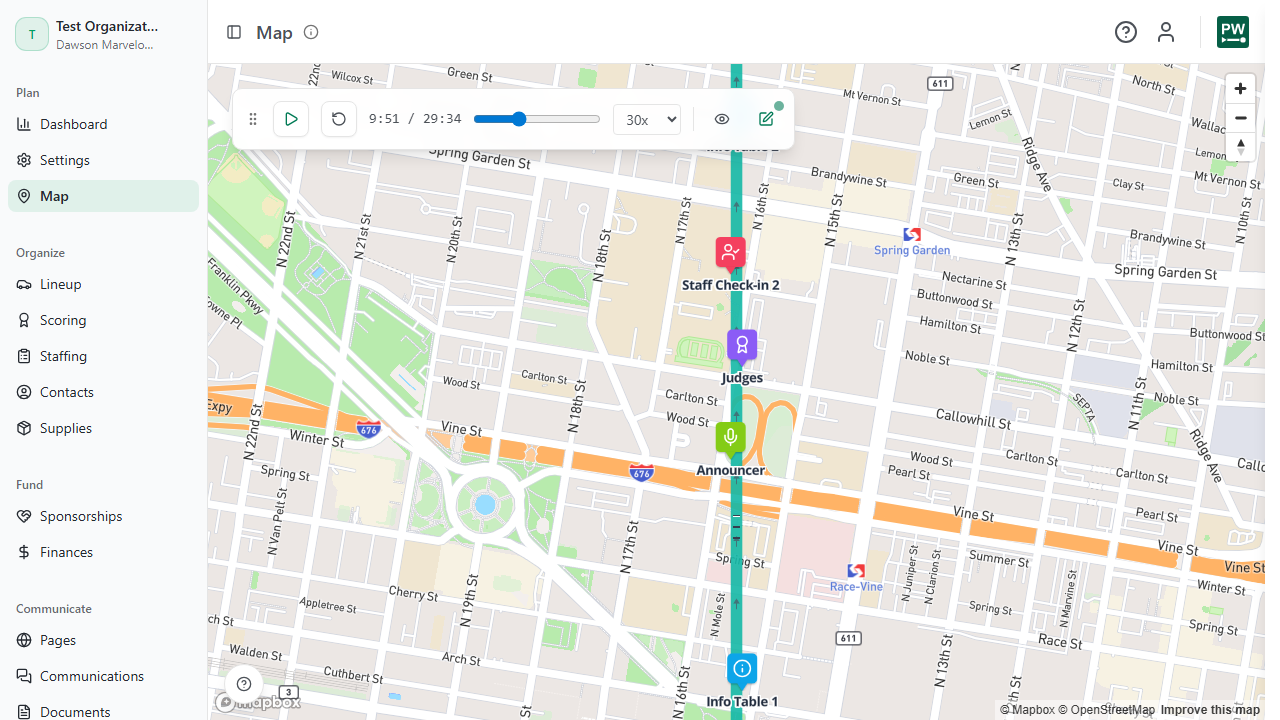
Units on the map are live: hover one to see its number and name, click one to open its details. If the parade doesn't fit your staging space, a warning tells you how many units can't fit; that one is a real blocker, so deal with it in lineup or by extending your lineup lanes on the map.
Where the numbers come from
The simulation isn't an animation; it's computed from your actual data:
- Your lineup order decides who steps off when. Units step off in sequence with a time gap between them.
- Each unit's length decides how much road it occupies. This is why real lengths matter: a guessed-at float length quietly skews every timing number downstream.
- Walking speed and unit spacing come from Settings, in the Speed & Spacing card: walking speed in feet per second (typical parade pace is 3 to 4 ft/sec; the app shows the mph equivalent) and the spacing gap in seconds between units (17 by default).
- The performance section of your route, if you have one, is where units spread out and pause to perform before moving on; per-unit performance timing comes from the unit's own entry, pause, and exit settings.
Change any of these and re-run the simulation to see the effect. That loop, adjust then replay, is the whole point.
What to look for
Run the full parade at high speed at least once, and watch for these:
- Total running time. If the clock says 90 minutes and your permit says 60, you've just saved yourself a very bad morning. Trim units, tighten spacing, or shorten the route now.
- Gaps opening up. A slow unit ahead of quick walkers stretches the parade. Watch where daylight grows between units, then fix the order in lineup.
- Corner warnings. With the Warnings layer on, the map flags sharp corners and crossing segments that may slow or stop flow. Hover a warning badge for the details. (The app already handles how units move around corners; the warning is about your route's geometry, not something you need to tune.)
- The tail of the parade. Scrub to the last third and watch it. That's the part of the show organizers rarely think about and the crowd at the far end definitely notices.
When something looks wrong at one spot, don't re-watch the whole parade. Drag the timeline back thirty seconds, drop the speed to 1x or 10x, and watch just that moment as many times as you need. Scrubbing is instant in both directions.
Make it easier to see
The Views button (the eye) controls what's drawn: route sections, units, warnings, stations, road closures, and more, plus a 3D Mode for buildings and terrain. Turning layers off just declutters your view; it never changes data. You can save named views to come back to, and those saved map views can also be dropped into printed documents.
For meetings, the simulation is your best prop. Running it in front of your committee, or your city's traffic office, answers "how long will Main Street be closed?" with a clock instead of a guess.