Recruit
Recruit volunteers
Publish the volunteer signup form, choose which roles appear on it, and understand where signups land so nobody falls through the cracks.
Volunteers sign themselves up through a public form, and their signups flow straight into your staffing roster. You don't copy names out of emails or spreadsheets: publish the form, pick which roles it offers, and every submission shows up ready to assign. This guide covers the recruiting half; staffing your parade covers what happens after people are in.
What the form offers is driven by your roles
This is the key idea, and it's why the form stays accurate all season without maintenance. The signup form doesn't have its own list of jobs. It shows your parade's actual roles, and only the ones that are both:
- marked visible to volunteers (a switch on the role), and
- still have open positions to fill.
When a role's positions fill up, it drops off the form on its own. No one signs up for a job that no longer needs people.
Two things follow from that. First, build your roles and positions before you recruit, or the form will be empty. Second, if a role you expect isn't showing up, check those two conditions: is it volunteer-visible, and does it still have an open slot?
Each role can also carry a Volunteer Form Blurb, a one-or-two-sentence pitch shown on the form. If you leave it empty, the role's full description is used, which is usually longer than a signup form wants. A good blurb sells the job: "Keep the staging area moving and be the first face groups see on parade morning."
Publish the form
- Go to Pages. In the Forms section, find Volunteer Form.
- Flip its toggle from Draft to Published.
- Make sure the site's master Website is Live switch is on, or nothing is public regardless of the toggle (see building your public website).
The public form lives at your parade's /volunteer address (paradeworks.co/p/your-org/your-parade/volunteer). Share that link directly, let people find it through your site's navigation (it appears as Volunteer With Us), or drop the [QR_VOLUNTEER_FORM] merge field into any email or printed document to give people a scannable code.
What volunteers fill out
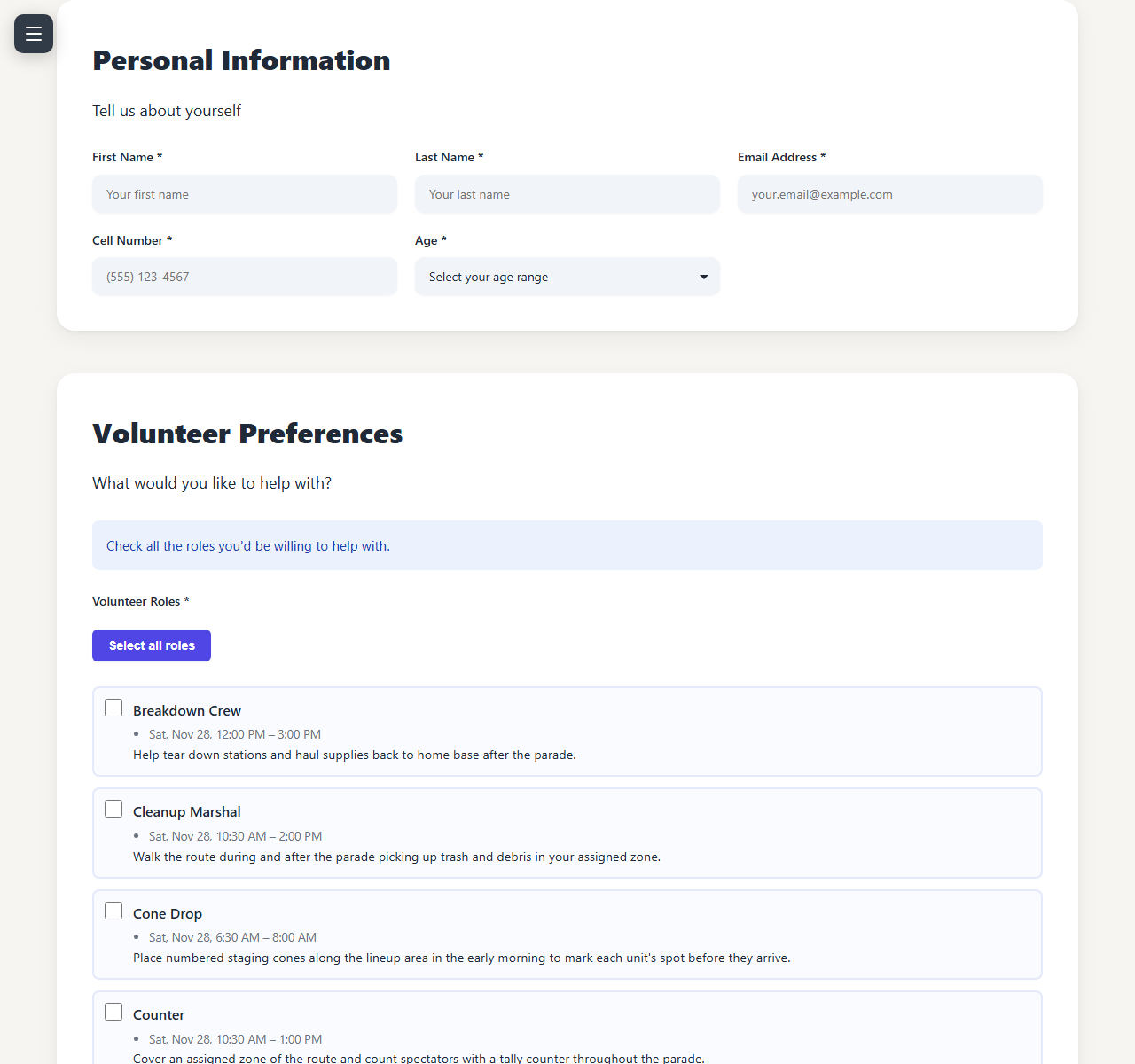
The form asks for name, email, cell number, and an age range, then the part you care about: Volunteer Roles, a checklist of your open volunteer-visible roles where they check everything they'd be willing to do. It also asks whether they can work more than one shift (and how many), plus an open text box and a "how did you hear about this" question. There's no availability grid to fill out; availability is implied by the roles they pick.
When they submit, they get a confirmation email automatically. You can edit its wording in Communications, under Form Confirmations; the template is the volunteer signup confirmation. See emailing participants.
Sign up through your own form once before you share the link. You'll see exactly which roles appear and how your blurbs read, and you'll have a test volunteer to practice assigning (you can remove them after).
Where signups land
New signups appear in Staffing, on the Assignments sub-tab, under the By Volunteer view. Each volunteer shows their contact info, their preferred roles, and an Assign... control that lists open positions in a sensible order: their preferred roles first, then roles they've done in past parades, then everything else.
You have three speeds, and they're the same three as staffing generally:
- One at a time, with each volunteer's Assign control.
- Assign Experienced Staff, which offers returning people the roles they held before.
- Smart Assign, which matches everyone remaining to open positions using their preferences and shift limits in one pass.
A volunteer's shift cap is their own answer to the "more than one shift" question, so Smart Assign won't overbook someone who said they could only do one.
(A quick list of raw submissions also lives behind the Submissions link on the Volunteer Form's row in Pages, which is handy for a fast headcount, but Staffing is where the real work happens.)
When you have enough people
There's no separate "close signups" switch, and mostly you don't need one: as positions fill, roles disappear from the form by themselves, and a fully staffed parade shows an empty form. If you want to stop signups entirely, flip the Volunteer Form back to Draft on the Pages tab.