Recruit
Accept payments with Stripe
Connect a Stripe account so your parade can take sponsor payments, application fees, and donations, and understand the fees and the verification wait.
If you want to collect money online, whether that's sponsor payments, application fees, or donations, you do it through Stripe. ParadeWorks uses a Standard Stripe Connect account, which means the money goes directly into your organization's own Stripe account, not ours. You connect once, and it powers every paid feature.
Connecting Stripe requires organization admin access.
Connect your account
- Go to Settings and open the Payments tab.
- In the Stripe Connection card, click Connect Stripe.
- You'll be sent to Stripe for a one-time setup where you enter your organization and bank details. This is Stripe's own secure form, not ours.
- When you finish, Stripe sends you back to this page.
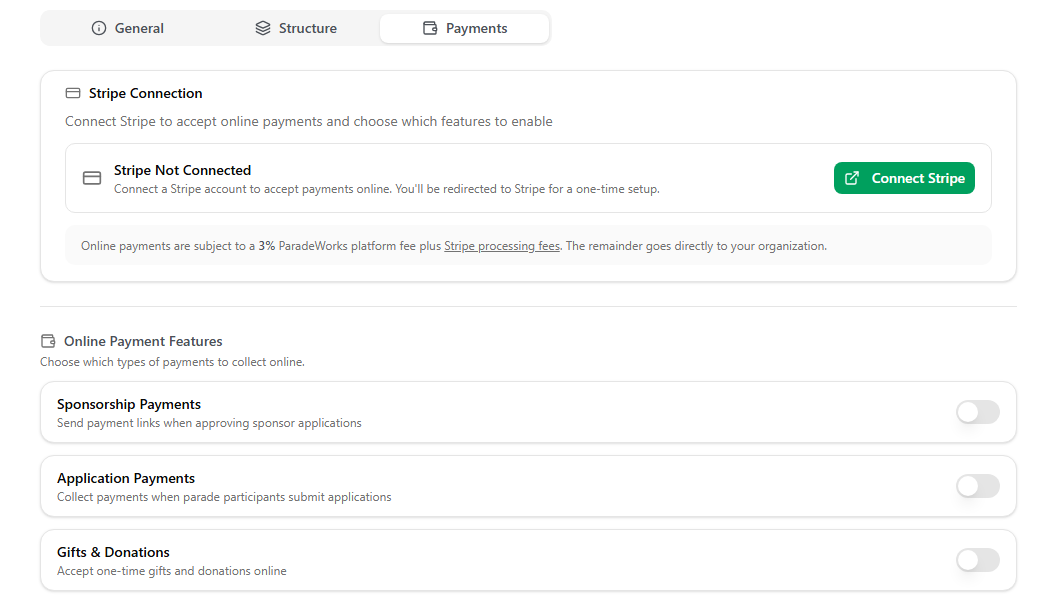
The button changes with your progress: Connect Stripe before you start, Continue Setup if you left partway through, Complete Verification once your details are in but Stripe hasn't finished checking them, and Manage once you're fully active.
The verification wait
Here's the part that surprises people. After you return from Stripe, your status often reads Stripe Pending Verification rather than connected. That's normal. You've submitted your details, but Stripe still has to review the account before it will allow charges.
This usually clears in a few minutes, but it can take up to two business days. The page updates on its own once Stripe finishes, so you don't need to do anything but wait. Two things you might see:
- Waiting on Stripe: Stripe is reviewing and needs nothing from you.
- Action needed from Stripe: Stripe wants more information (often identity verification). The page lists exactly what's required. Complete those steps on Stripe, and the page updates automatically.
You can't turn on any paid feature until your account reaches Stripe Connected (charges enabled).
What it costs
Online payments carry a 3% ParadeWorks platform fee plus Stripe's own processing fees. Everything after that goes directly to your organization. A few things worth knowing up front:
- On a refund, the platform fee and Stripe's processing fee are not returned.
- Payouts from Stripe to your bank typically take two to seven business days.
- Disputes and chargebacks are handled through your Stripe dashboard.
Turn on the features you want
Once your account is connected, the Online Payment Features section lets you choose what to collect. Each is a separate switch:
- Sponsorship Payments sends payment links when you approve sponsor applications.
- Application Payments collects fees when participants apply. Turning this on reveals the fee tier setup covered in setting up your parade application.
- Gifts & Donations accepts one-time gifts through a public donate page. Turning it on reveals a Suggested Amounts editor (up to six preset buttons, defaulting to $25, $50, $100, and $250; donors can also enter their own amount), and it automatically adds a donate link to your parade website and navigation.
If you try to flip one of these on before your account is verified, the app prompts you to finish connecting Stripe first rather than turning it on.
Starting over
If you connected the wrong account or need to reconnect, use Start Over (it appears while an account is connected but not yet verified). It opens a Reset Stripe connection? confirmation. Resetting disconnects the account and, importantly, turns off all three payment features, so you'd re-enable them after connecting a new account.