Prepare
Generate parade-day paperwork
Build reusable document templates that fill themselves in with your parade's data and print as PDFs, one per unit, station, or role.
The Documents tab (labeled Documentation Sheets) is how you produce the paper your parade runs on: station instructions, unit signs, role guides, run-of-show. You write a template once with merge fields, and the app generates a filled-in PDF for every station, unit, or role, updating automatically as your parade data changes. No copy-pasting names into a hundred documents.
This works best once your staffing (stations, roles, positions) and lineup (units) are in place, since that's the data the documents pull from.
The scopes
Every sheet has a scope that decides how many PDFs it produces:
- Event Documents: one document for the whole parade (a master run-of-show, a safety plan).
- Station Documents: one per station (packing lists, station instructions).
- Unit Documents: one per unit (staging signs, participant packets).
- Role Documents: one per role or position (position guides).
- Map View Documents: read-only, generated from views you save on the Map tab.
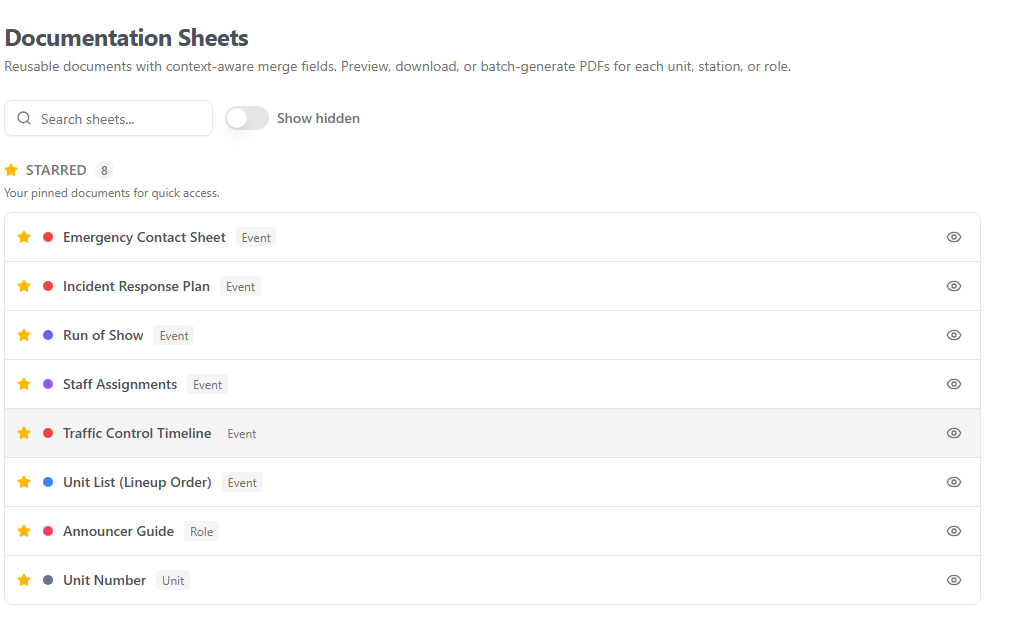
The tab groups your sheets under these headings, with a Starred section on top for the ones you pin.
Create a sheet
Click Add in the section you want, or use Create New Documentation Sheet and pick a Sheet Type. For station and role sheets you also choose a Scope: All (a single template that cycles through every station or position) or Specific (a template for just one). Then edit it.
In the editor you set:
- PDF Style (Standard, Compact, Spacious, or Display (Large)), Orientation (Portrait or Landscape), and a Color Theme.
- The content, using the toolbar's Insert Field button to drop in merge fields.
Merge fields do the filling-in
Merge fields are placeholders that become real values when the PDF generates. Insert Field opens a searchable picker showing only the fields that make sense for this sheet's scope: a unit sheet offers the unit's name, lineup number, and participant count; a role sheet offers the assigned person, supplies, and reporting lines; and so on. List fields can render as bullets, checkboxes, or a table, and there are QR-code fields that drop in a scannable code.
Some fields insert a map image, like road closures, lineup lanes, or a coverage zone. When you download, the app captures those map views as images and embeds them into the PDF for you.
Because everything is a field, the documents stay current. Change a unit's lineup number or a station's hours, and the next PDF reflects it without you touching the template. For a template that produces many PDFs, use Preview as to spot-check how one instance looks before printing them all.
If you started from a built-in template and your edits drifted from it, Reset to Template pulls the latest version back in. It replaces this sheet's body only, and doesn't touch your other sheets, so use it deliberately.
Download and batch
For a single-document sheet, click Download PDF. For a template that spans many stations, units, or positions, the Download button offers three choices:
- This Sheet Only: just the instance you're previewing.
- All Sheets as One PDF: every instance combined into one multi-page document, handy for printing in a single run.
- All Sheets as ZIP: a separate PDF per instance, handy for emailing each station or unit their own.