Execute
Judging, scorecards, and results
Build rubrics, configure your judge panel, hand out digital scorecards, and read the results, in the order that avoids the one destructive mistake.
Judging is a pipeline: define what gets scored, set up who scores it, give each judge a private digital scorecard, then read the aggregated results. Each step lives in a specific place, and one step (reassigning after scoring starts) can destroy data, so follow the order.
1. Define rubrics, in Settings
Rubrics don't live in the Scoring tab. They're part of your parade's structure: go to Settings, open the Structure tab, and build your rubrics there. A rubric is a named set of criteria (each with a name and description), and each unit is linked to the rubric it should be scored against, so floats can be judged on different criteria than marching bands.
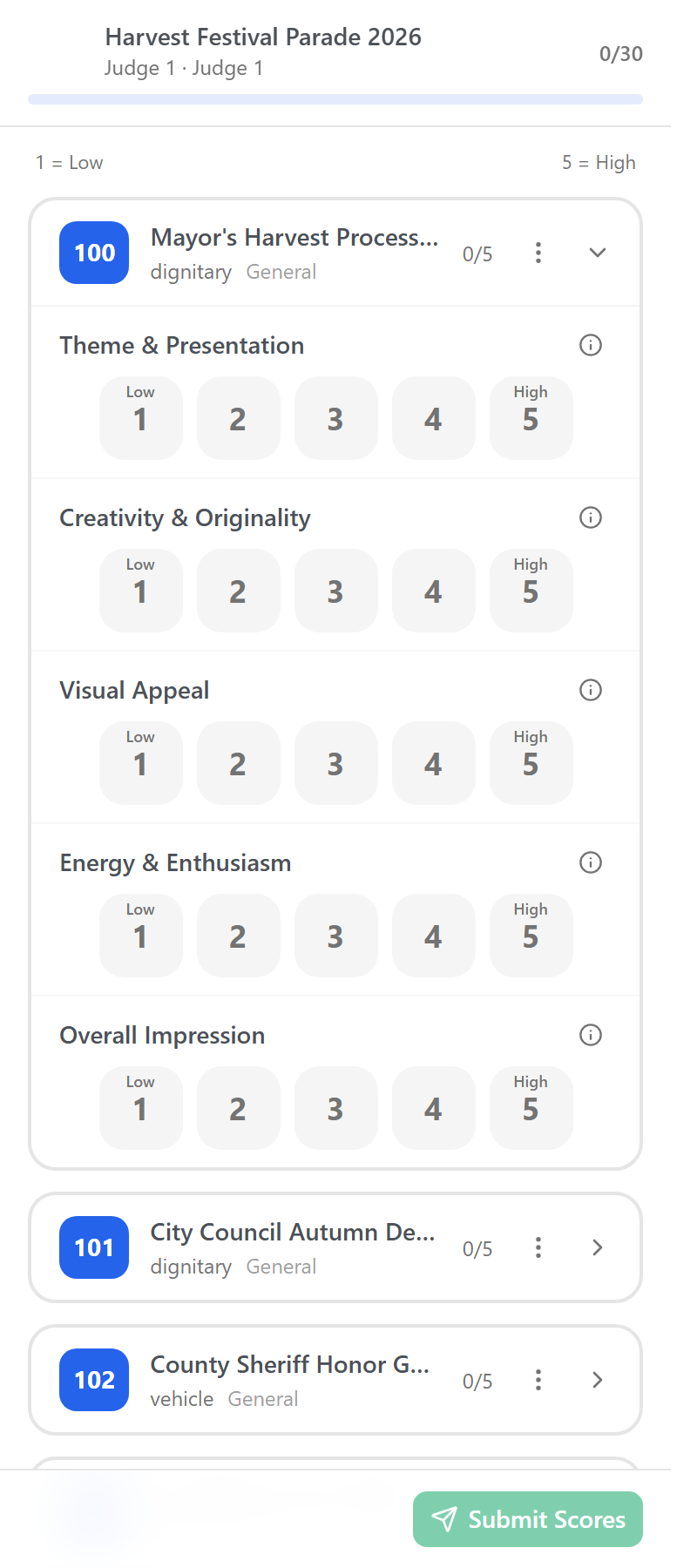
Judges score each criterion from 1 to 5. All criteria count equally; results are straight averages, not weighted.
A few example rubrics
A rubric is just a name plus a handful of criteria. Some that work well:
- Floats: Theme & Presentation, Creativity & Originality, Visual Appeal, Energy & Enthusiasm, Overall Impression.
- Marching bands: Musicality, Marching & Precision, Appearance, Showmanship.
- Walking groups and community entries: Spirit & Energy, Costume or Theme, Crowd Engagement.
Keep each rubric short. Three to five criteria is the sweet spot. Judges score on the move, often from a phone at the curb as a unit passes, so a long rubric slows them down and makes their scores less consistent. If a criterion is hard to judge in the few seconds a unit is in front of them, it probably doesn't belong.
2. Configure the judge panel
In Scoring, on the Configuration tab, open Judge Configuration. Two decisions:
- Every judge scores all units, best for small parades, where you just set how many judges you have. Or split units among judges, where you set a target number of units per judge and how many judges should score each unit, and the app computes how many judges you need.
- If splitting, choose how units are grouped: by scoring category, so a judge sees similar units, or an even mix.
You can also set a judge shift (start and end time). Click Save Configuration and the app creates the judge positions for you. You don't create judges in Staffing; this screen manages them. Then fill those positions with actual people the same way you'd fill any position.
3. Assign units and check spacing
Back on Configuration, click Smart Assign to distribute units across judges. The overview table lets you check the result from three angles (by unit, by judge, or by rubric), and a spacing indicator flags judges who'd score back-to-back units with no breather.
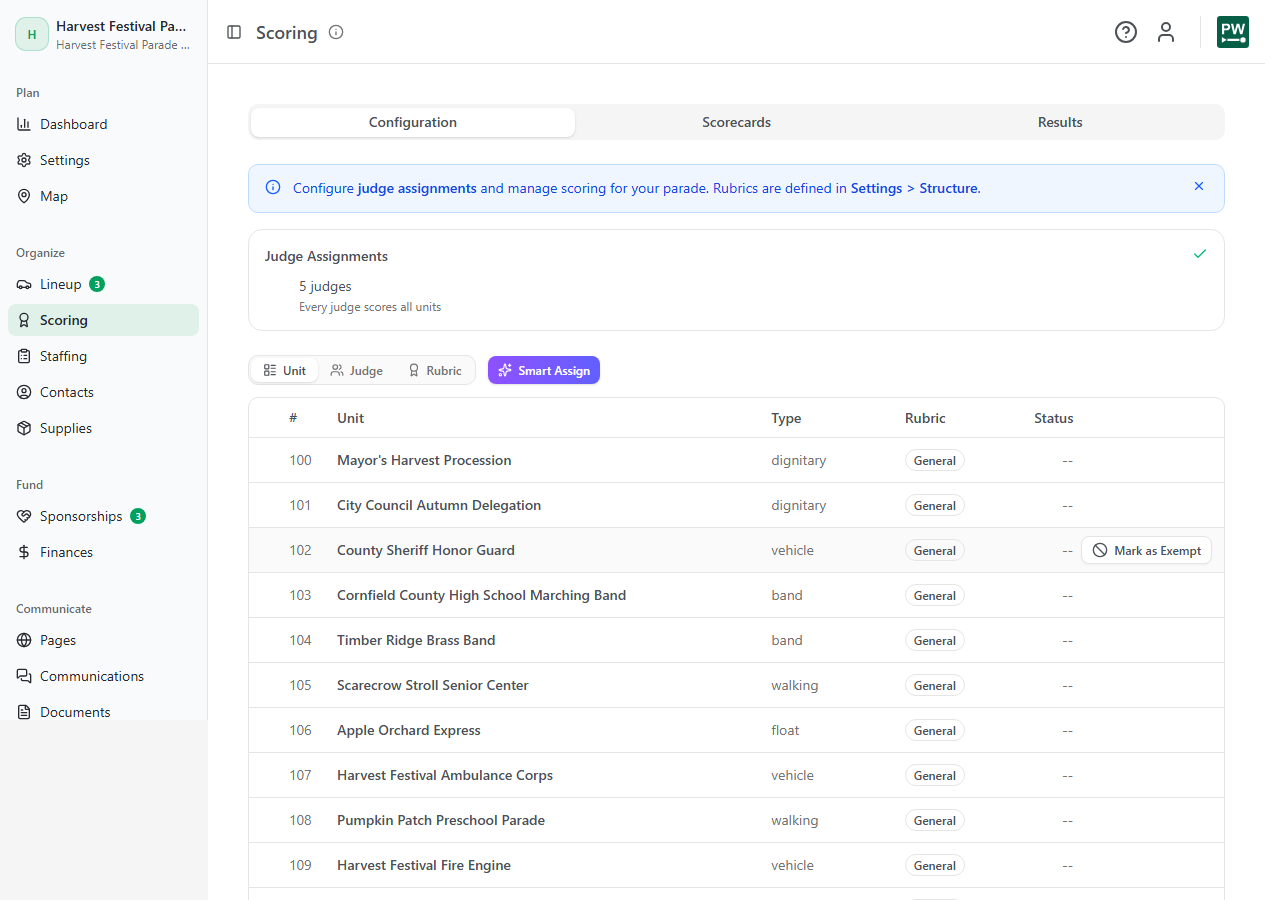
Units that shouldn't be judged at all (honor guards, VIPs) can be marked exempt, which removes them from every judge's card.
Finalize your lineup before this step. Assignments are spaced using lineup order, and if the order changes afterward, the Scoring tab will tell you assignments need attention.
4. Send scorecards
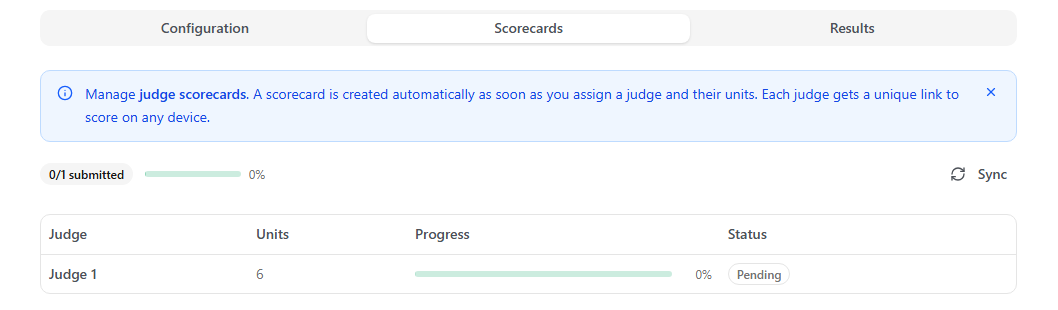
The Scorecards tab shows one row per judge once they have units assigned. Each scorecard is a private link, no login required, that works on the judge's own phone. Send them individually or with Send All; the invitation email includes the judge's unit count, the criteria, and their personal scorecard link.
Print the Judge Guide as a handout and backup
Your parade comes with a Judge Guide document, in the Documents tab under Role Documents. It generates one packet per judge, filled in with that judge's details:
- a QR code that opens their personal scorecard, so a judge who misplaced the email just scans the front page and starts scoring
- the scoring rubrics they'll be using
- a paper scoring grid of their assigned units, as backup in case cell service is overwhelmed on parade day (an organizer can enter paper scores into the system afterward)
Print one per judge and hand them out at check-in. It's the difference between "I never got the email" being a crisis and being a shrug. See Generate parade-day paperwork for how document sheets work.
Judges score each unit 1 to 5 per criterion, can skip a unit and come back, and their progress saves automatically. When done, they submit. Here's what a judge sees on their phone:
Dry-run it days before, not parade morning
Before any invitation goes out, test the pipeline yourself. From the Scorecards tab, open two or three judges' scorecard links on your own phone (or scan the QR on a printed Judge Guide) and check three things: the right units, in lineup order, against the right criteria. Look, don't score — a scorecard stays Pending no matter how many times it's opened, but the moment a score is entered it flips to In Progress.
Do this while invitations are still unsent. At that point nothing is in flight, so if a judge has the wrong units or a unit has the wrong rubric, you can fix the configuration or rerun Smart Assign freely. The same check on parade morning has no such luxury.
Once judges have opened their scorecards, do not rerun Smart Assign or change the configuration. The app warns you in escalating terms because in-flight scores are tied to those assignments and there is no undo. Get the assignments right before invitations go out.
5. Read the results
The Results tab ranks units by average score, overall or per criterion, filterable by unit type and rubric. Two things surprise people:
- Only submitted scorecards count. A judge who scored everything but never hit submit contributes nothing until they do. Chase submissions before announcing winners.
- Exempt units don't appear at all.
You can export the raw scores to CSV for records or offline tallying. If a judge went rogue and scored on paper, an organizer can enter their scores manually from the scorecard row.
Optional: judge notes
There's a per-parade setting to let judges jot a short note on any unit, including skipped ones. Notes never block submitting and don't count toward progress; they show up in expanded Results rows and in the CSV export. Handy if you announce superlatives or want color for the awards ceremony.
Notes pair especially well with a short rubric. The numbers capture the measurable things, and a quick note captures the nuance a tight rubric leaves out, so you don't need a criterion for every possible observation. If you find yourself wanting to add more and more criteria, consider trimming the rubric and letting notes carry the rest.