Set up
Add your team and set access
Invite people to help run your parade and control exactly what each of them can see and do, using capabilities.
You don't have to run a parade alone. You can invite other people into your organization and give each of them access to just the parts they need. Access is controlled by capabilities, a set of checkboxes, rather than broad roles, so you can hand your sponsorship lead the sponsorship tools without giving them everything.
Managing your team requires the Manage Access capability (organization owners always have it).
Open Security & Access
From your hub, click Security on your organization. That opens the Security & Access page, with two sections: Organization Members (everyone who has access, and their capabilities) and Pending Invitations (invites not yet accepted).
Invite someone
- Click Invite Member to open the Invite New Member dialog.
- Enter their Email Address.
- Under Capabilities, check what they should be able to access (the groups are explained below).
- Click Send Invitation.
They get an email with an invite link. When they accept (logging in or creating an account with that email), they join your organization with exactly the capabilities you chose. Pending invites can be resent or revoked from the Pending Invitations list, and you can change anyone's access later with Edit Access, or remove them with the trash icon.
What the capabilities mean
Capabilities are grouped into three sets:
Administration
- Manage Access: change other members' capabilities. Give this only to co-administrators.
- Invite Members: send and revoke invitations.
Parade Access
- View Parade: read-only access to dashboards.
- Edit Parade Data: update the lineup, units, and other editable data.
- Manage Parade Settings: edit the schedule, configuration, and milestones.
Specialty
- Manage Sponsorships: sponsorship packages, deals, and financial tracking.
- Manage Volunteers: staffing, volunteer coordination, and check-in.
- Manage Logistics: staging, barriers, resources, and routing.
- Manage Communications: announcements and parade communications.
You don't have to hand out View Parade separately. Any parade capability includes read access automatically, and checking a specialty box adds View for you. Each member's granted capabilities show as badges on their row:
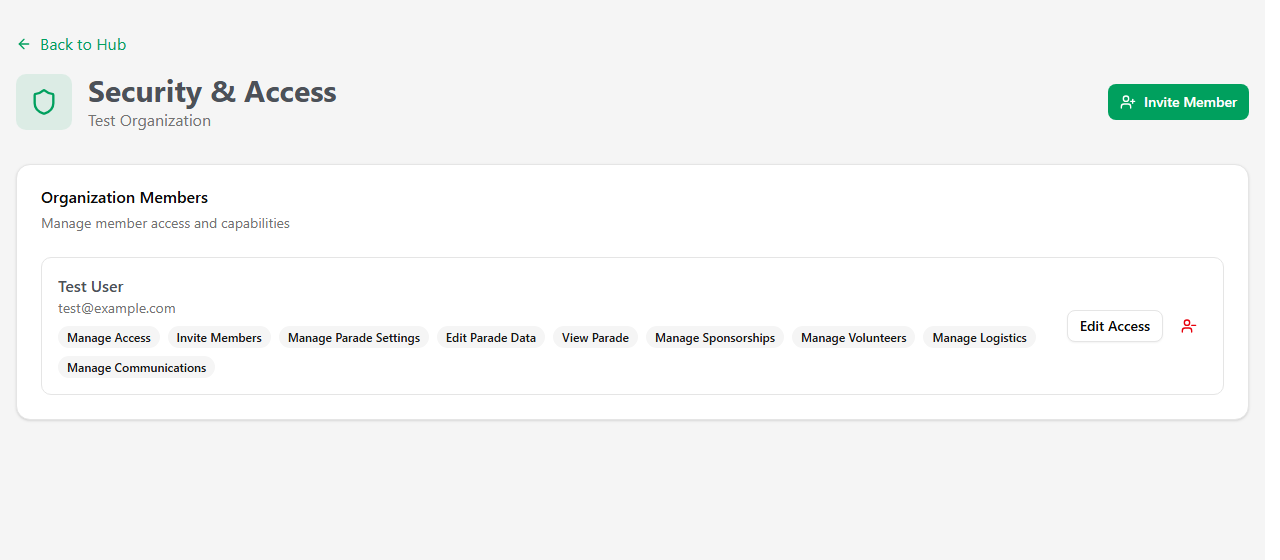
Which capability reveals which part of the app
The specialty capabilities control what shows up in a member's sidebar:
- Manage Volunteers reveals Staffing, Contacts, and Supplies.
- Manage Sponsorships reveals Sponsorships and Finances.
- Manage Communications reveals Pages and Communications.
Dashboard, Settings, Map, Lineup, Scoring, and Documents are visible to anyone who can view the parade, so a member with only View Parade still sees those (read-only). Manage Logistics grants access to staging and routing data rather than revealing its own separate tab.
Capabilities decide what a member can do; the only "role" that matters in the UI is Owner. An owner has every capability automatically and can't be removed, so an organization always has someone in charge.
Seat limits
Your plan sets how many team members you can have: Free includes 2 seats, Starter 3, Community 6, Pro 15, and Enterprise is unlimited. Members plus pending invitations count toward the limit. If you're at the cap, the invite dialog tells you and points you to upgrade. Re-inviting an address that's already pending just updates it and doesn't use an extra seat.