Recruit
Sponsorships and finances
Define sponsorship levels, bring sponsors in through applications or your own outreach, and track every dollar in and out.
Two related views handle the money side of your parade. Sponsorships is where you sell and manage sponsor support. Finances is where you track all the money, both in and out, against a budget. This guide covers both.
Sponsorships: levels, sponsors, prospects
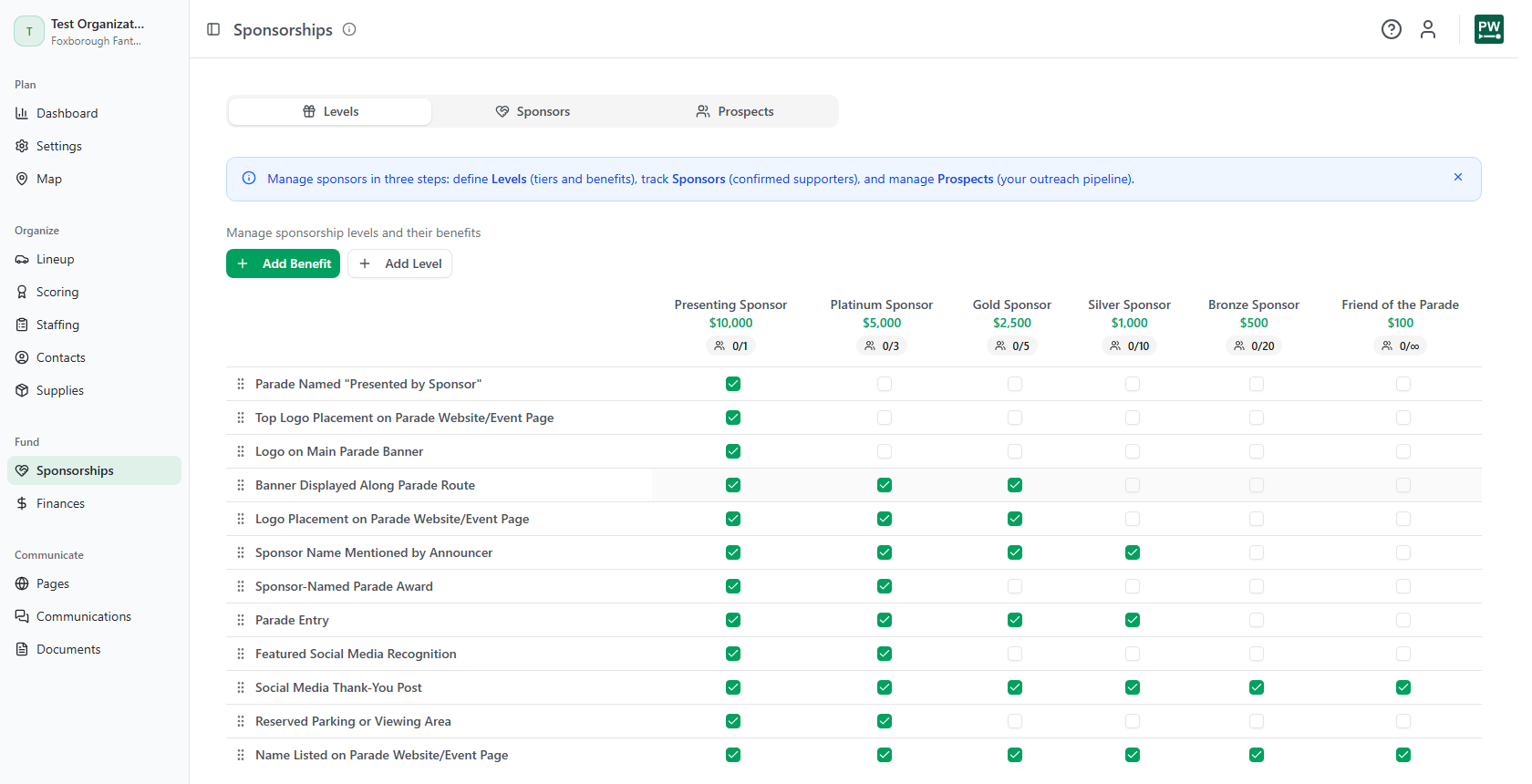
The Sponsorships view works in three parts, shown as sub-tabs:
- Levels: your pricing tiers and the benefits each one includes.
- Sponsors: confirmed supporters, each at a level.
- Prospects: your outreach pipeline, the people you're still pursuing.
Start with levels
On the Levels tab, define each sponsorship tier: a name, an amount, a description, and how many slots are available (leave it blank for unlimited). You can also build a list of benefits (branding, digital, media, program perks) and check which ones each level includes, so a "Gold" level clearly shows what it gets over "Silver."
Two ways sponsors arrive
They apply through your website. Sponsor applications come in and appear in the Sponsors tab under a pending list. Review each one and either Approve or Decline. On approve, you can Approve Without Email (you'll collect payment another way) or Approve & Send, which emails them a payment link. On decline, you can add internal notes and choose whether to send a message.
You go find them. Use the Prospects tab as an outreach pipeline. Add a prospect, set their priority, the level you're pitching, and an ask amount, then move them along a status track (Identified, Contacted, Interested, and so on). When one commits, Convert to Sponsor, optionally sending a payment link at the same time.
Sending any payment link requires Stripe to be connected; see accepting payments. Without it, you can still approve and convert sponsors, just without collecting online.
Reconciling payments
When a sponsor pays online, the payment matches back to their record automatically. If a payment comes in that the app can't tie to a sponsor for this parade, it shows up in an Unmatched Sponsorship Transactions list on the Sponsors tab. Each one lets you Create Sponsorship from it, attach it to a Different Entity, or Dismiss it. Clear these so your sponsor list and your money match.
Finances: goals, income, expenses
The Finances view tracks your whole budget across three sub-tabs.
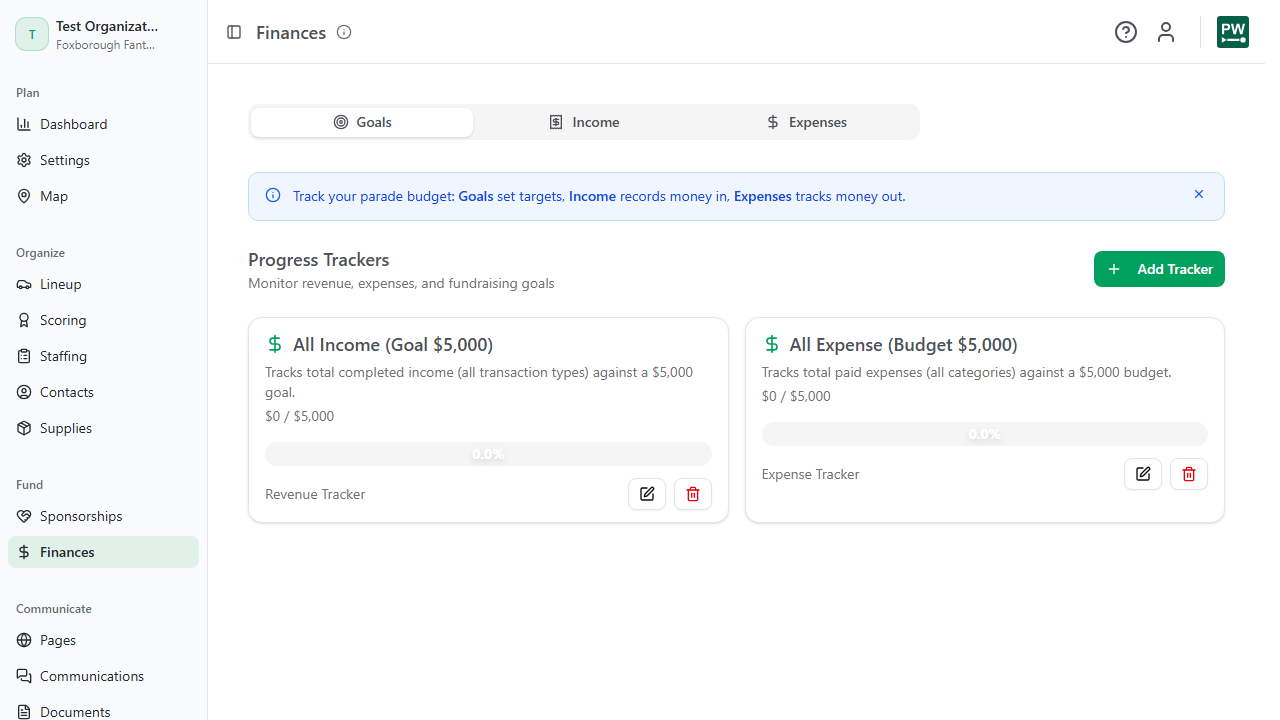
- Goals are progress trackers. Set a target (total raised, a fundraising goal, a spending cap) and watch actual numbers fill in against it.
- Income records money in. Online payments (sponsorships, application fees, gifts) land here automatically when they clear Stripe. For anything collected offline, use Add Offline Income and record the check, cash, or in-kind gift, including who it came from and which level it applies to.
- Expenses records money out, categorized (permits, insurance, vendors, supplies, and so on) with a payment status so you can separate what's planned from what's paid.
Every table exports to CSV for your records or your board.
One contact, many roles
Behind all of this is your contact list. The same person or company is a single contact record, so when someone sponsors, applies, or volunteers, they link to one entity rather than scattering across the app. That's why an approved sponsor already has a contact, and why a sponsor's payments, soft credits, and history roll up in one place.