Organize
Staffing your parade
The role, position, and assignment model explained, the order to build in, and the three ways to get people into slots.
Staffing is the part of the app with the most moving pieces, and it all clicks once you get the model. Three ideas, in one sentence each:
- A role is a job description: "Judge," "Lineup Marshal," "Water Station Volunteer." It defines the work, the supplies, and the paperwork.
- A position is one slot of that job: this station, this stretch of units, this time window. A role usually has several positions.
- An assignment is a person in a position.
So you never assign a person to a role. You create positions under the role, then put people in the positions. Keeping that straight is 80% of staffing.
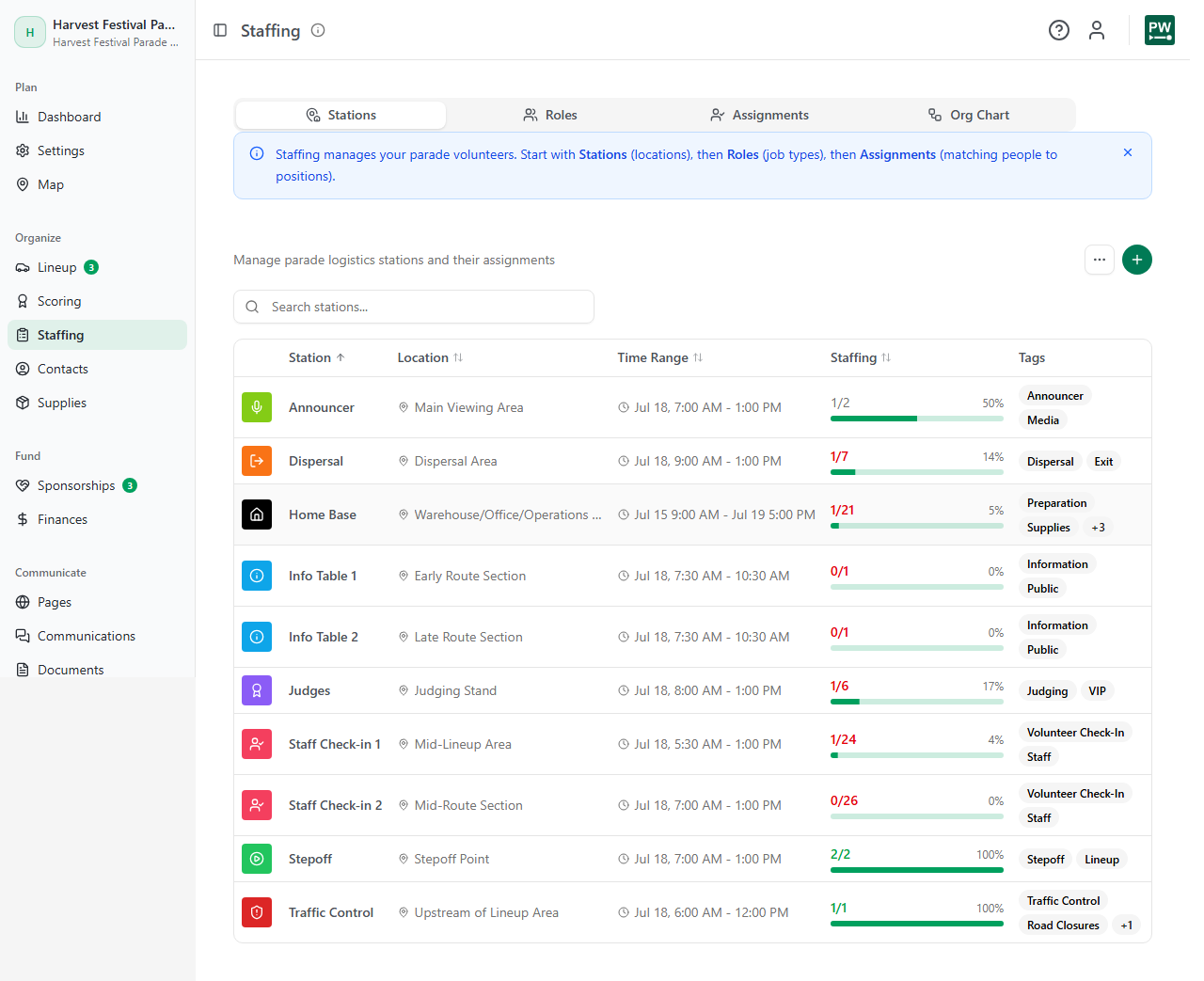
The Staffing view has four sub-tabs, and they're arranged in the order you should work: Stations, Roles, Assignments, and Org Chart.
Build in this order
- Stations first. Stations are the physical spots (first aid, check-in table, announcer booth) that positions attach to. Manage them on the Stations sub-tab, which tracks each one's location, time range, and how filled its positions are. Their spots on the map come from map editing.
- Roles next. On the Roles sub-tab, click Add Role. The Create New Role dialog asks for a title, a description, and a Role Type: General, Lineup Staff, or Judge. Lineup Staff positions with assigned units show up on the parade-day Check-in Dashboard.
- Positions under each role. Open a role and use its Positions tab. Each position can carry a schedule (start and end time), a station, special instructions, assigned units, coverage zones, and reporting relationships (Reports To and Direct Reports, which feed the org chart).
- People last, on the Assignments sub-tab.
Two role types are special and managed elsewhere, on purpose. Judge positions are created automatically by the Scoring tab's judge configuration, and lineup marshal positions come from the map's lane configuration. If you try to add those here, the app will point you to the right place. Roles seeded from templates are system roles and can't be deleted.
Three ways to fill positions
By hand. Open a position and click Assign Person. Search your contacts or create someone new on the spot.
From volunteer signups. People who fill out your public volunteer form appear on the Assignments sub-tab with their preferred roles and availability. Each volunteer has an Assign control that groups open positions sensibly: their preferred roles first, then roles they've done before, then everything else.
In bulk, with help. Two buttons do the heavy lifting: Assign Experienced Staff offers people who held a role in past parades, even if they haven't signed up this year, and Smart Assign matches remaining volunteers to open positions using their preferences, availability, and shift limits.
Assignments start as Pending and you flip them to Confirmed once the person says yes. The tab flags conflicts for you: overlapping shifts show an Overlap warning, and a unit can only be assigned to one position, so reassigning it moves it rather than duplicating it.
Supplies and paperwork ride on the structure
Each role lists the supplies a position needs and who provides them, which is what drives the Supplies view. Documents like station instructions and assignment sheets are generated per role, station, or position with everything filled in. Build the structure well and the paperwork writes itself.
If your positions are half-filled a week out, don't panic-recruit into random slots. Run Assign Experienced Staff first, then Smart Assign, then look at what's genuinely still open. It's usually a shorter list than the raw numbers suggest.