Recruit
Build your public parade website
Create the public pages people see, order them in your navigation menu, decide what's public, and take the whole site live when you're ready.
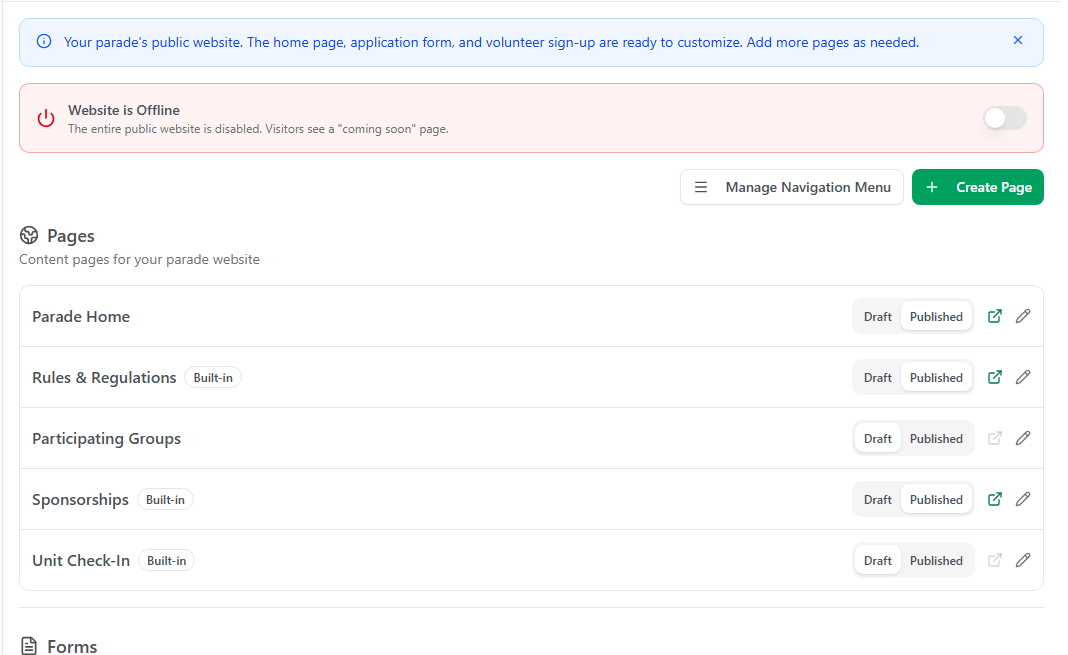
Your public website is what the world sees: the home page, the schedule, the rules, how to apply, how to sponsor. You build it under Pages, from a mix of pages you create and built-in forms. The screenshot below shows where the main controls live.
Start with the pages you need
Your site already comes with the essentials built in: a home page shown in the list as Parade Home, plus the Application Form, Rules, and other built-in pages. You customize these rather than create them. Open Parade Home first and make it read well, since it's what visitors land on.
Beyond that, you don't need many pages. Most parades do well with the built-ins plus a page for sponsors, if you have them.
To add a page of your own, click Create Page and give it a title (a subtitle is optional). Each page is built from sections and modules rather than free-form text, so you assemble it from blocks like a hero, links, and sponsor or unit listings. Pages you create are separate from the home page and start as drafts.
Decide what's public, and when
This is the decision that trips people up. Each page and form has a Draft / Published toggle. A draft is visible only to you; published is visible to anyone. Pages you create start as drafts, while the built-in forms and pages (like the Application Form and Rules) start published.
Above all of that is a single master switch, Website is Live / Website is Offline. While it's off, nothing is public no matter how each page is set, which is useful while you build. When you're ready, turn it on to take the whole site live.
Think about timing:
- Publish your Application Form and Rules early, so groups can sign up.
- Keep detailed day-of information as a draft until it's final.
- Turn the site live once your home page reads well enough to be someone's first impression.
Order your navigation menu
To control the order pages appear in your site's navigation, click Manage Navigation Menu. Drag the items (pages, forms, and special pages) into the order you want. The main Pages list itself is grouped by type; the navigation menu is where ordering happens.
Before you announce your site, open it while signed out (a private browser window works well). The public site only shows published pages, so this is the real test of whether it's ready.